Send Automatic Signature Reminders with GetSign
Following up with signers manually wastes time and creates gaps in your document workflow. GetSign now lets you…

Before this update, adding sub-items to a PDF template automatically imported all sub-item columns from the board. This created cluttered documents containing internal tracking columns that weren’t meant for clients or external parties.
Teams needed a way to choose only the relevant sub-item fields to present.
This makes generated PDFs cleaner, more focused, and more professional.
Users can now choose exactly which sub-item columns to include.
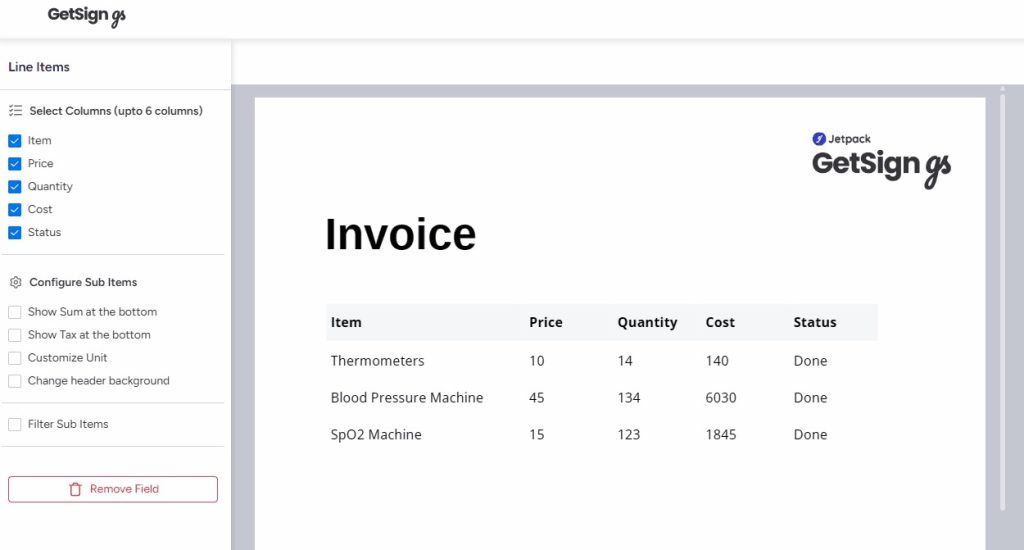
Only the selected columns will now appear in generated documents.
Generate, send, sign and track documents without leaving your workflow.