Send Automatic Signature Reminders with GetSign
Following up with signers manually wastes time and creates gaps in your document workflow. GetSign now lets you…

When your monday.com board items contain multiple images, presenting them in a document or proposal has always been a manual headache. GetSign now lets you display multiple images from a file column directly inside your document templates. You control the grid layout, the number of rows and columns, and exactly how many images appear in the final output.
Upload Your Template: Open GetSign from your monday.com board and add a new template.
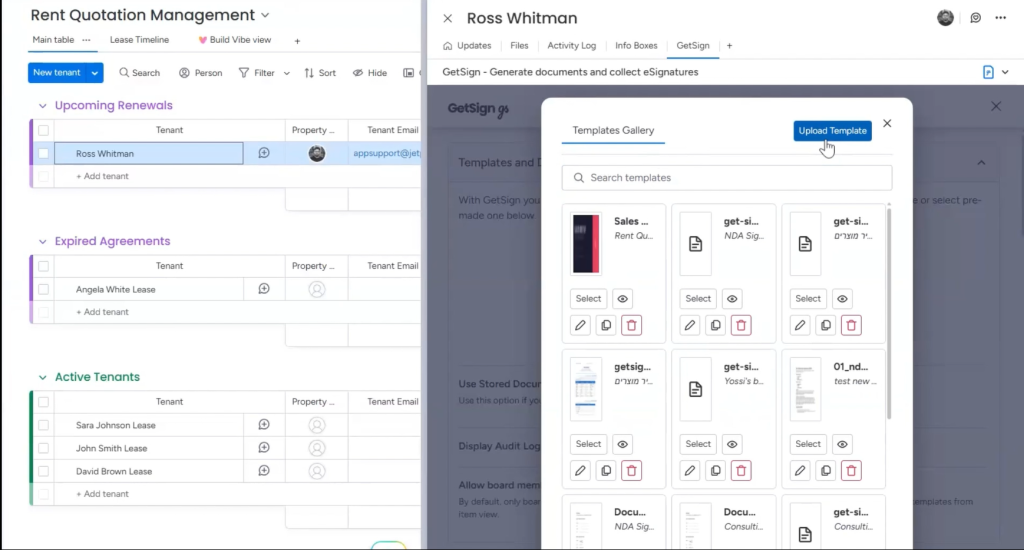
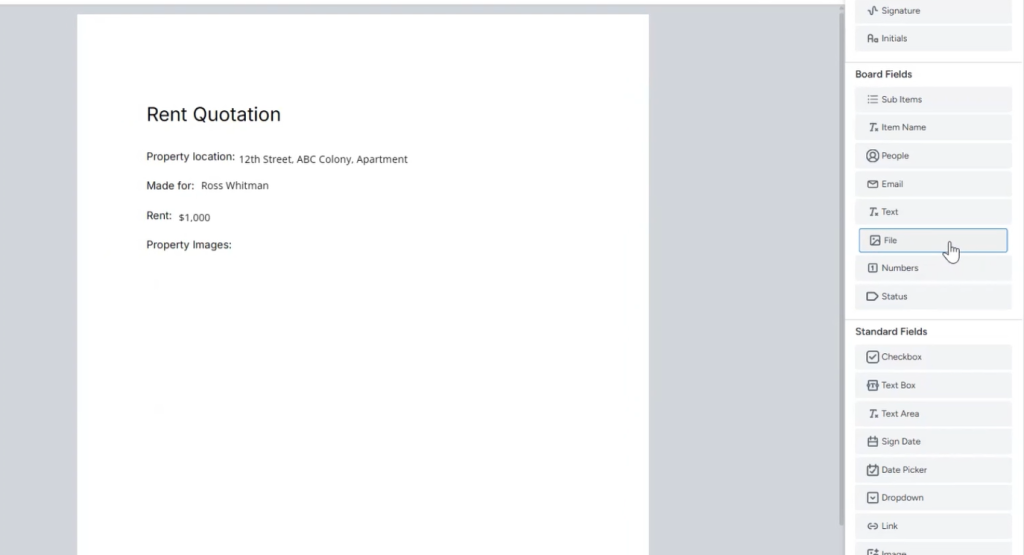
Add the File Column to Your Template: In the template editor, locate the Property Images section and drag/drop the file column into the template.
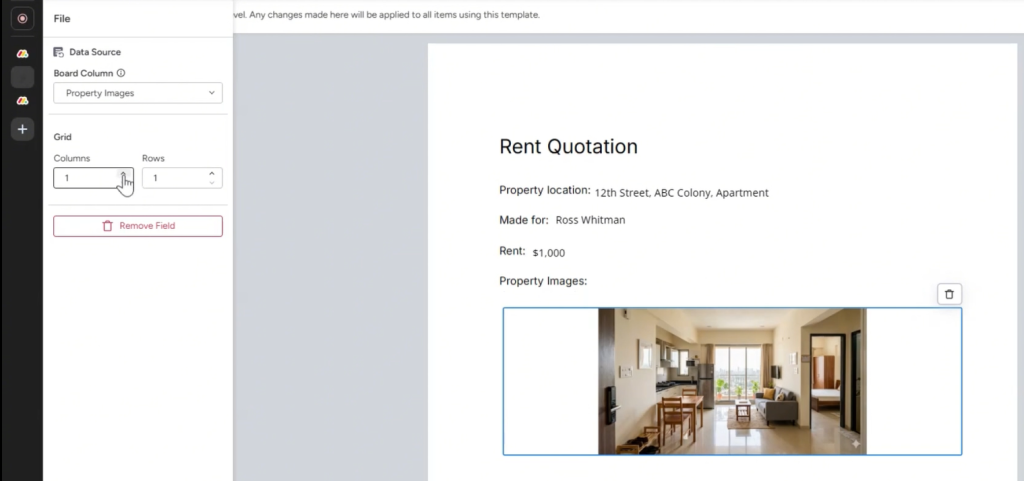
Configure the Grid Layout: Adjust the number of columns, rows, and size of the image block.
Preview and Adjust: Adjust settings until the layout matches your design.
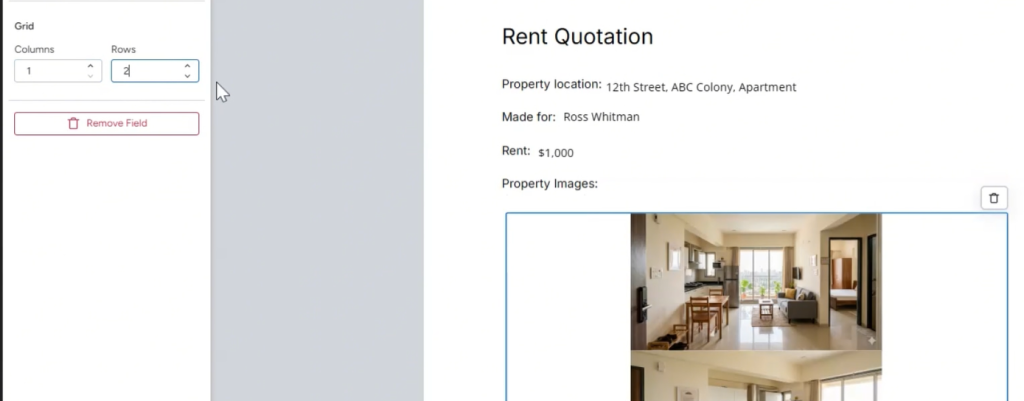
Multi-image support removes a significant manual step. Instead of assembling images manually, the layout is built into the template itself and pulls directly from board data.
Generate, send, sign and track documents without leaving your workflow.