GetSign now works in monday.com subitems: Generate, eSign and track documents from monday.com subitems
Keeping document workflows inside monday.com is straightforward for top-level items — but subitems have historically been a gap.…

If your team sends documents for signature through monday.com, you already know the friction: every new document meant opening a specific item, re-uploading your template, re-entering who’s signing, reconfiguring reminders, and doing it all over again the next time.
There was no shared view of what was actually happening with documents across the board. Knowing what had been sent, what was awaiting signature, and what had already been completed meant opening item after item and piecing it together manually.
This guide walks through the GetSign Board View, which moves that setup to the board so you configure it once and reuse it for every send.
GetSign Board View is a monday.com board view that turns document sending into a one-time setup. It gives your board a dedicated home for document sending, templates, and workflows, all in one place, so setup happens once and everything that follows is reuse.
The configuration moved from the item to the board. In the item view, every document you sent needed its own setup on its own item: upload the template, place the fields, enter the signer, configure the send.
In Board View, templates and workflows are created once at board level and reused for every send that follows. What used to be called an envelope is now called a workflow.
| Item view (before) | Board View (now) | |
|---|---|---|
| Where it installs | On each item, per document | Once, as a board view |
| Template setup | Re-uploaded for every send | Uploaded once, reused everywhere |
| Field placement | Placed manually | Detected automatically, then mapped |
| Send configuration | Rebuilt every time | Saved as a named workflow |
| Terminology | Envelope | Workflow |
| Sending a document | Open the item, configure, send | Pick a workflow and item from the board, send |
| Status visibility | Open items one at a time | Board-level dashboard |
Board View covers the full document cycle on a monday.com board: preparing templates, saving send configurations, sending for signature, and tracking what comes back. Each of the capabilities below is set up once and then available to everyone working on that board.
Board View pays off fastest for teams that send the same kind of document over and over, because the setup cost is paid once and the reuse is unlimited. If your team sends more than one document a week from the same board, the second send is already cheaper than it was.
Setup takes few minutes and you only do it once. You will need a monday.com board and a PDF or DOCX file to use as your template. Everything after this initial setup is reuse: the five steps below are what you do on your first document, not on every document.
Click the Add View button on your monday.com board, go to Apps, and select GetSign. You’ll land on the GetSign welcome screen. Click the Setup button and fill in your account details.
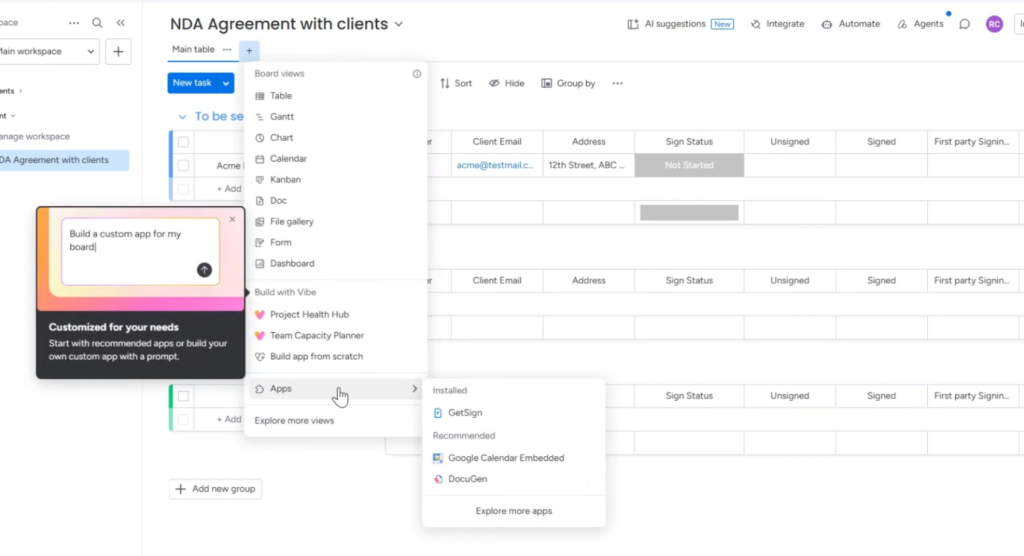
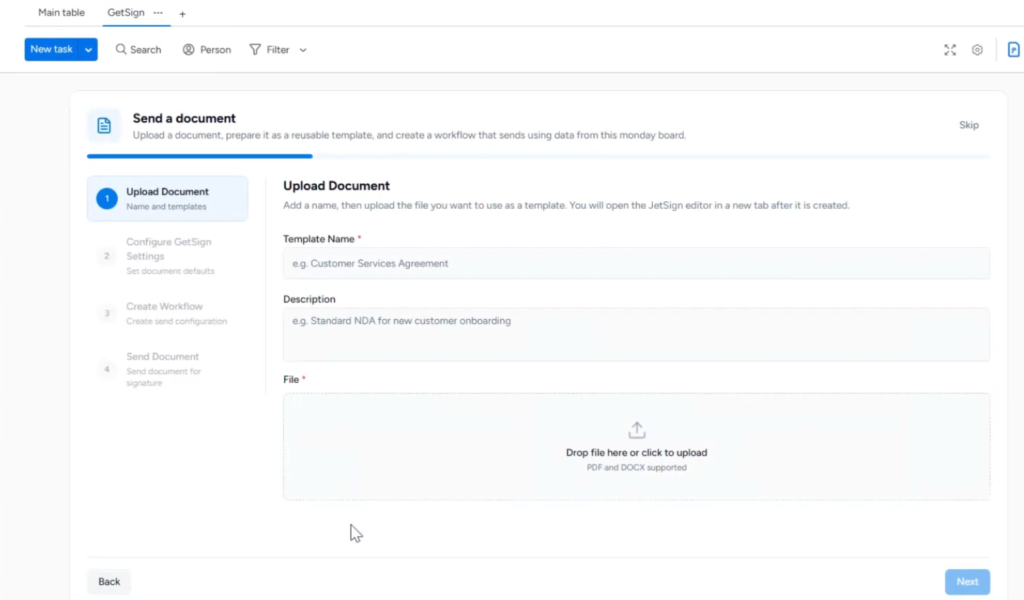
Select the option to configure a document and send it, then click Send Document. Give your template a name (description is optional). Upload your PDF or DOCX file and click Next.
The template will open in a new tab inside the GetSign editor. Click Yes, Detect to have the app automatically scan your document and place signature and data fields. Once detected, click Migrate Fields and map each field to the correct monday.com column. For example, map the name field to your text column and the client email field to your email column. Signature fields will be placed automatically. Save when you’re done.
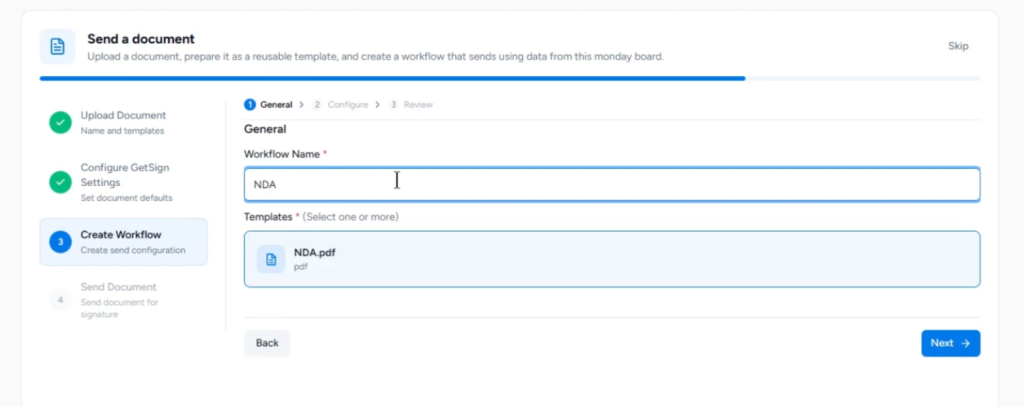
After saving your template, you’ll move to the sending configuration screen. Here you name your workflow and set up your sending preferences. This is what was previously called an envelope, and previously required reinstalling GetSign on each item. That’s now handled entirely through saved workflows.
Under Signature Collection settings, you can enable Send Status to have signing status reflected back into a monday.com status column, and select a file column where the completed signed document will be saved automatically. Click Next, then Finish.
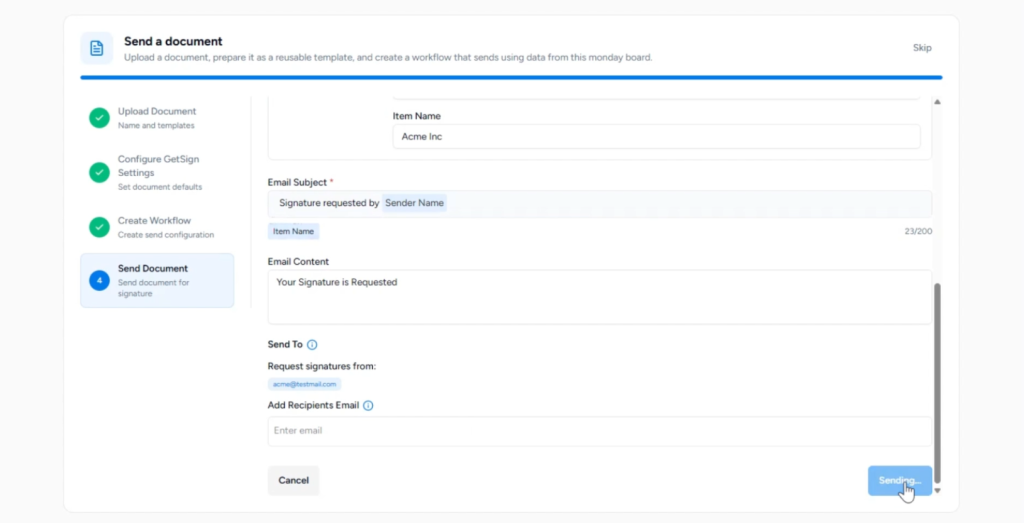
With your workflow saved, you’re ready to send. Click Send Document from the Board View, choose your workflow, select the relevant item, click Next, add the recipient email address, and click Send. Your document is now out for signature, and you haven’t had to open the item at all.
Head back to the Board View home. The Dashboard shows you total signing sessions, how many are awaiting signature, and all active sessions listed by type (Proposal or Document). The Recent Activity feed shows sent, viewed, and signed events in reverse chronological order. As new documents are sent and signed, these numbers update automatically.
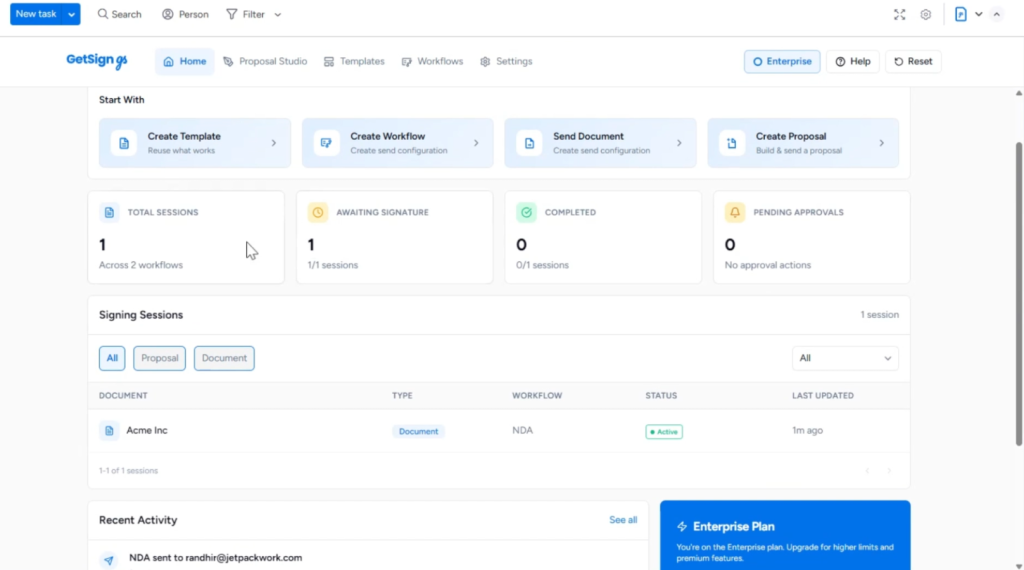
GetSign Board View takes everything that used to happen item by item, with no shared visibility, and brings it together in one board-level home. Templates and workflows are set up once and reused every time. Document status is visible at a glance. Sending a new document takes seconds rather than minutes.
GetSign Board View is free to install from the monday.com marketplace and adds to any existing board without changing your data. Install it, walk through the five steps above once, and your next document goes out in seconds.
Ready to try it? Install the GetSign Board View on your board and walk through the setup. For help along the way, check our documentation or reach out to our support team directly.
The Board View installs once on a monday.com board and gives you a shared home for all document sending, templates, and workflows across the whole board. The item view required setting up each document individually, every time. Board View replaces that repeated setup with reusable templates and workflows.
No. Once GetSign is installed as a Board View, you create a workflow once and reuse it for every document send. You just select the workflow and the item, and send.
Board View is designed to replace the item-level workflow with a more efficient, board-level approach. For new sends, the Board View is the recommended way to work.
The Board View home dashboard shows all active signing sessions, their current status, and recent activity, all in one place without needing to open individual items.
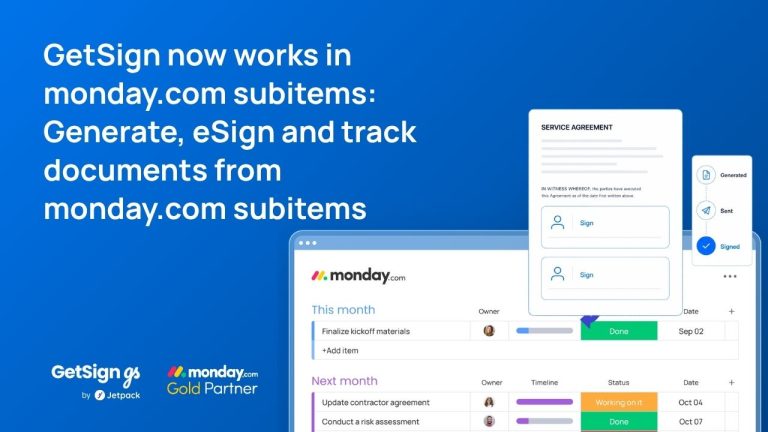
Keeping document workflows inside monday.com is straightforward for top-level items — but subitems have historically been a gap.…
Imagine your team is working on multiple contracts, purchase orders, or agreements in monday.com, and you need to…
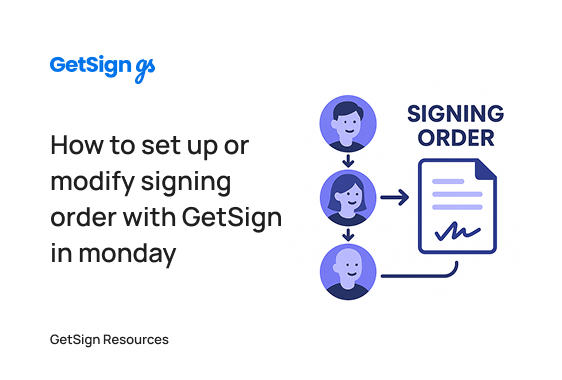
In many organizations, document approval isn’t as simple as getting one signature. Complex workflows often require multiple stakeholders…
Generate, send, sign and track documents without leaving your workflow.