Getting Started with GetSign Board View: Set up document signing on monday.com
If your team sends documents for signature through monday.com, you already know the friction: every new document meant…

Creating, formatting, and manually sending documents across departments or to clients can slow down your workflow and introduce unnecessary risk. With GetSign’s document generation and eSignature automation for monday.com, you can instantly turn your board data into professional PDF documents—ready for signing, storage, and action.
This guide walks you through how to set up document generation, automate delivery, and integrate signatures—all inside monday.com.
Document generation automates the creation of files like contracts, agreements, invoices, or proposals using live data from your monday.com boards. Instead of manually editing templates, GetSign pulls data directly from fields like names, emails, dates, and status to populate your documents dynamically.
With GetSign’s document generator, you can:
Scenario: A marketing agency needs to send a pre-approved agreement to every new client after the sales lead marks a deal as “Closed Won.”
Without automation: The sales team fills in a template manually, sends it by email, and waits for a signed copy—often taking hours.
With GetSign:
This saves hours of admin work each week and improves client experience.
Generate offer letters, onboarding checklists, and compliance forms for every new hire when their status changes to “Hired.” HR teams save time and ensure all documentation is consistent and stored in one place.
Auto-generate customized sales proposals using client-specific data when a deal stage changes. Sales reps no longer need to reformat or copy information manually.
Automatically create and distribute contracts to vendors when their onboarding is approved. This ensures timely execution and standardized documentation.
Generate confirmation letters, itineraries, or consent forms for event registrants based on their sign-up details stored in monday.com.
These use cases show how GetSign’s document generation supports multiple departments in automating manual processes and reducing turnaround times.
Go to your GetSign settings panel. You will now see a GetSign Generate toggle:
There is no need to use the marketplace or a separate integration anymore—everything is handled directly in settings.
Important: If the file is not pinned, generation will not work. Files added via “Use Stored Documents” or “Upload File” remain unpinned by default.
After configuring your flow in settings:
Once generated:
Can I generate different documents for different workflows?
Yes. Each workflow can have its own template, mapping, and trigger conditions.
What file formats are supported for upload?
GetSign accepts DOCX and PDF files when uploading templates.
Can generated PDFs include signatures?
Yes. You can add eSignature fields to any template using the signature builder.
Where are generated documents stored?
In the file column of the related item on your monday.com board.
What happens if I forget to pin the uploaded file?
The document will not generate. Pinning the file is required for generation to work.
Document generation with GetSign on monday.com streamlines how your business creates, customizes, and delivers client-ready documents. From contracts and forms to internal checklists, this feature helps you:
Start generating dynamic PDF documents today and empower your monday.com workflow with smarter automation.
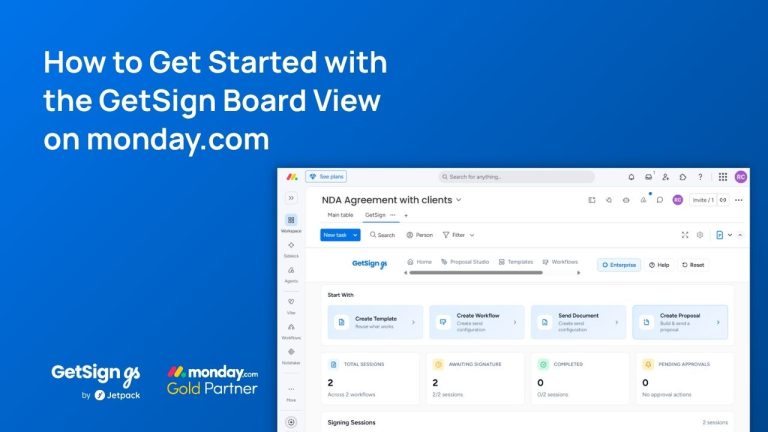
If your team sends documents for signature through monday.com, you already know the friction: every new document meant…
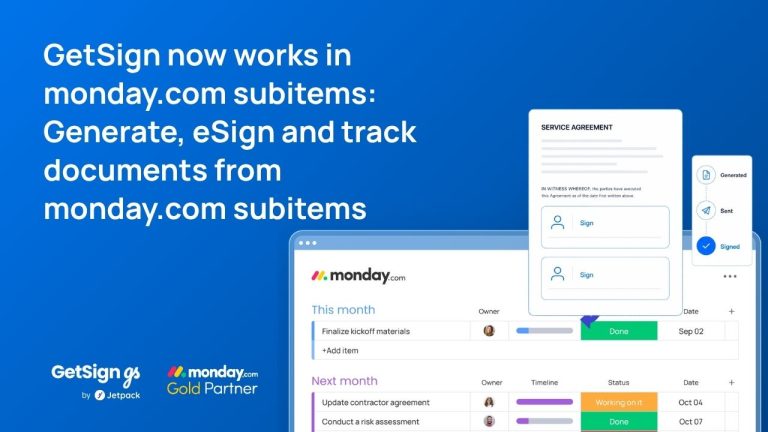
Keeping document workflows inside monday.com is straightforward for top-level items — but subitems have historically been a gap.…
Imagine your team is working on multiple contracts, purchase orders, or agreements in monday.com, and you need to…
Generate, send, sign and track documents without leaving your workflow.