Getting Started with GetSign Board View: Set up document signing on monday.com
If your team sends documents for signature through monday.com, you already know the friction: every new document meant…

Your brand should be front and center—even in something as routine as an eSignature request. With GetSign’s custom-branded email signature feature on monday.com, you can customize signature invites with your company logo, ensuring every communication reflects your identity and builds trust.
This guide walks you through how to set up custom branding for email invites and why it matters for your professionalism and client experience.
A custom-branded email signature lets you add your business logo to the eSignature invitation emails sent via GetSign. This simple customization ensures your recipients know who the message is from, reducing confusion, building trust, and strengthening your overall brand presence.
Ensure your quotes, scopes of work, and contracts come from a trusted, professional source.
Give new hires a polished first impression with branded offer letters, NDAs, and policy forms.
Add credibility to NDAs, compliance forms, and official contracts with a company-branded sender.
Stand out when working with external partners by delivering a custom-branded experience from start to finish.
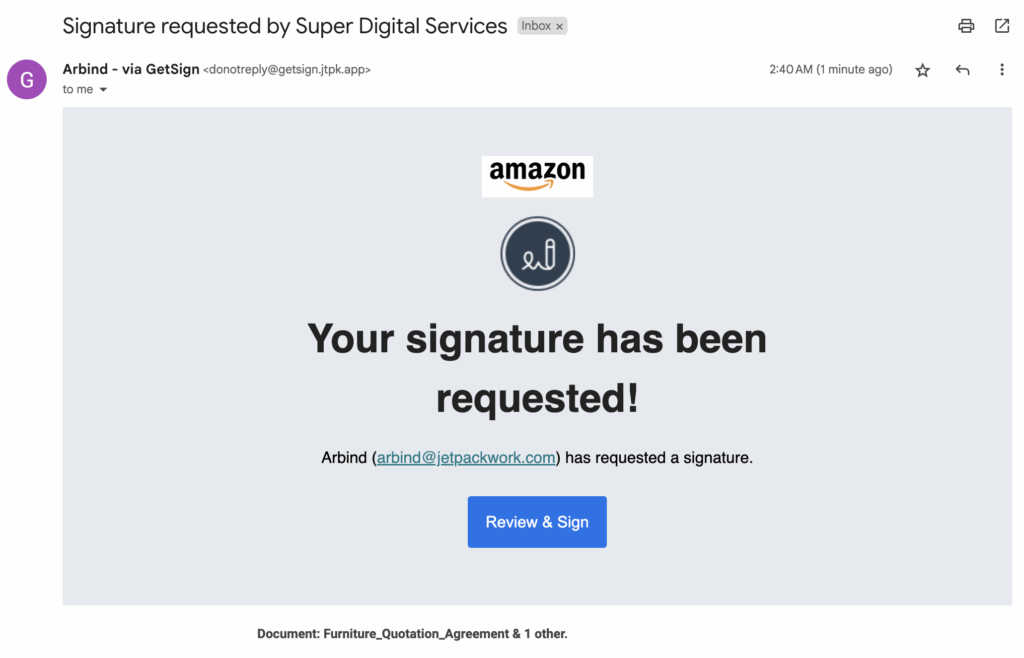
Branding your email invites is a subtle yet powerful way to reinforce your company’s identity. By integrating GetSign with monday.com, you can easily add a custom business logo to your eSignature invites—transforming a routine signing process into a professional, branded experience.
Below, we detail how to set up branded email signatures, the benefits of this feature, and key use cases.
1. Open Your Board & Item
Log into your monday.com workspace and select the board where you manage your documents (e.g., contracts, quotes, agreements).
Choose the relevant item (such as a new contract) you plan to send for eSignature.
2. Switch to the “GetSign” View
In the item’s details, locate the GetSign view (often at the bottom).
This view centralizes all features for uploading documents, customizing settings, and adding branding.
– Keeping everything in one place makes it easier to manage your eSignature workflows and avoid juggling multiple apps.
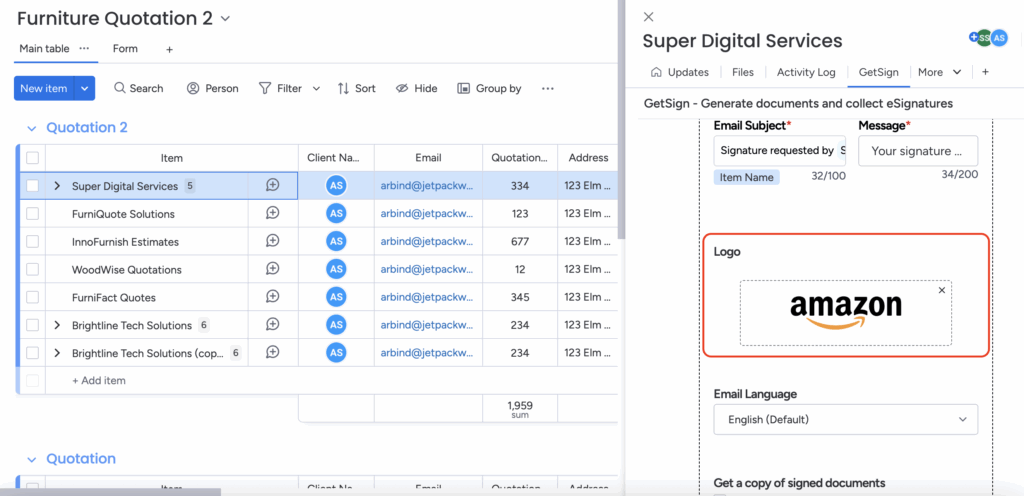
1. Open Settings
– In the GetSign view, look for Settings or Branding options.
– Locate the area labeled “Add Your Business Logo.”
2. Drag & Drop Your Logo
– Upload your custom logo (PNG, JPEG, or SVG) by dragging it into the provided area.
– Click “Save” once uploaded to confirm your changes.
3. Preview Your Branded Email
– Some versions of GetSign let you see a quick preview of how the email invite will appear to recipients.
– Adjust or resize your logo if needed for the best visual impact.
Tip: Use a high-resolution image with minimal background clutter to maintain a polished appearance.
1. Verify Sender Details
Check the “Sender Name” and “Sender Email” in the same Settings area.
If required, confirm your email address to avoid spam filters.
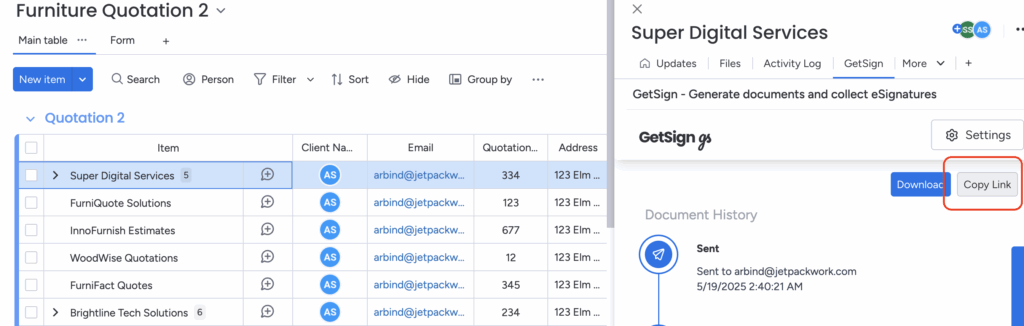
2. Click “Send” or “Copy Link”
Use “Send” to dispatch the eSignature invite directly to the recipient’s inbox.
Alternatively, copy the link to share via chat, CRM, or any other communication platform.
3. Recipient’s Experience
The email invite now features your business logo, giving it a professional look.
Recipients can sign on desktop or mobile, no extra software required.
Efficiency Boost: Real-time notifications and status updates appear in your monday.com board, helping you track signing progress effortlessly.
Your email now includes your business logo at the top—adding a layer of professionalism.
Scenario: A SaaS sales team sends multiple proposals each week to potential clients.
Old way: Plain eSignature invites with no branding, leading to occasional confusion or low engagement.
With GetSign branding:
Result: Higher open rates, faster turnaround, and improved professionalism
Can I upload different logos for different boards or teams?
Currently, each workspace supports one logo. You can change it anytime as needed.
What image formats are supported?
PNG, JPEG, and SVG are supported. Use a clear, high-resolution image for best results.
Will the logo show up on mobile?
Yes. GetSign emails are fully responsive and display the logo on all device sizes.
Can I add a custom footer or tagline?
Not at this time. Only the logo is customizable within email branding.
Do I need to verify the sender email?
Yes. This ensures deliverability and avoids spam filters.
Custom branding your eSignature invites is one of the simplest ways to strengthen client relationships and present your business more professionally.
With GetSign on monday.com, you can ensure every invite you send carries your identity—from first touch to final signature.
If your team sends documents for signature through monday.com, you already know the friction: every new document meant…
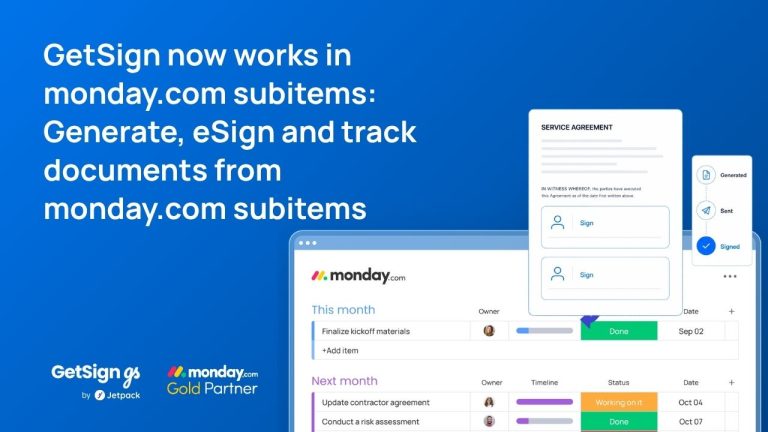
Keeping document workflows inside monday.com is straightforward for top-level items — but subitems have historically been a gap.…
Imagine your team is working on multiple contracts, purchase orders, or agreements in monday.com, and you need to…
Generate, send, sign and track documents without leaving your workflow.