Getting Started with GetSign Board View: Set up document signing on monday.com
If your team sends documents for signature through monday.com, you already know the friction: every new document meant…

Collecting structured information from clients, team members, or partners shouldn’t be a manual chore. With monday.com’s sharable online forms, you can gather input effortlessly and automatically sync it into your boards for immediate visibility and action.
This guide walks you through setting up forms, customizing fields, and sharing them with internal and external stakeholders—all within your monday.com workspace.
Collect business details, contact information, and project needs—without back-and-forth emails.
Capture leave requests, equipment needs, or personal updates with clarity and structure.
Gather specs, proposals, or feedback from third parties using forms linked to your internal workflow.
Collect ratings, comments, or testimonials and store responses where your team already works.
We’ll also show you how to connect that data to your documents via GetSign for a complete, streamlined workflow.

1. Open Your Board
Log into monday.com and choose the board where you want to gather responses.
Each column represents a data field (e.g., Name, Email, Project Details).
2. Form View
Click the “+” icon next to your board’s existing views.
Select “Form” to launch the no-code form builder.
The form builder automatically converts your board columns into fillable fields, ensuring a smooth data flow.

1. Add or Edit Columns
– If you need extra data fields (like “Department” or “Preferred Contact Method”), add columns in your board before creating the form.
– The form builder instantly reflects these columns as fields.
2. Rename Fields & Provide Instructions
– Edit field labels to clarify what information you’re collecting.
– Add placeholder text or descriptions to guide respondents.
3. Set Field Types
– Monday.com supports text fields, dropdowns, dates, checkboxes, and more.
– Choose the right field type to capture accurate data (e.g., “Email” field for contact addresses).
Outcome: A user-friendly form that captures exactly what you need without overwhelming respondents.
1. Generate a Shareable Link
In the form view, click “Share Form” to create a unique URL.
Anyone with the link can fill out the form, even if they don’t have a monday.com account.
2. Embed on Websites (Optional)
Copy the embed code to place the form on your website or intranet.
This allows visitors to submit data directly, with responses auto-syncing to your board.
3. Distribute via Email or Chat
Share the form link with colleagues, clients, or partners.
They can complete the form at their convenience, and you’ll see new items created in real time.

Once you have structured data flowing into your board columns, you can use GetSign to generate documents—like contracts, proposals, or agreements—that automatically populate fields with the information your partners provided. Here’s how:
1. Open GetSign in Your Board:
– Switch to the GetSign view on the item created by the form submission.
2. Add Board Fields to Your Document:
– In GetSign’s document editor, drag and drop “Board Fields” onto your template.
– Map each field (e.g., Name, Email, or Project Details) to the corresponding column from your form.
3. Send for eSignature:
– Dispatch the document for signing, confident that all the data is already accurately filled in.
Result: A fully automated workflow—from form submission to eSignature—without manual data entry.
Sharable online forms in monday.com simplify how you collect information—internally or externally. Whether you’re onboarding clients, gathering internal requests, or capturing vendor feedback, forms ensure a smooth, structured intake process.
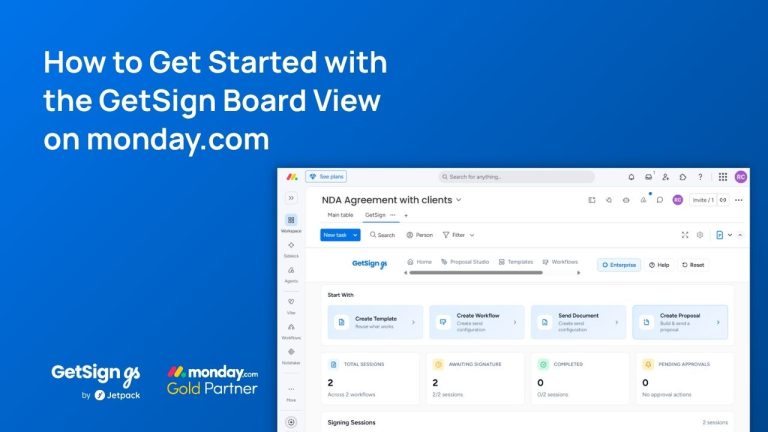
If your team sends documents for signature through monday.com, you already know the friction: every new document meant…
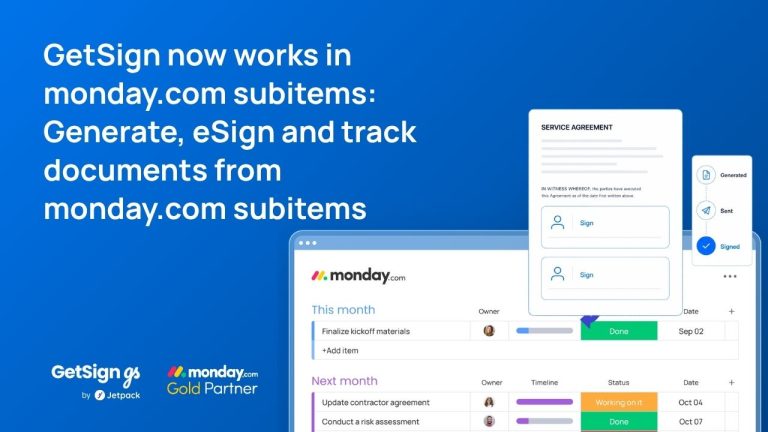
Keeping document workflows inside monday.com is straightforward for top-level items — but subitems have historically been a gap.…
Imagine your team is working on multiple contracts, purchase orders, or agreements in monday.com, and you need to…
Generate, send, sign and track documents without leaving your workflow.