
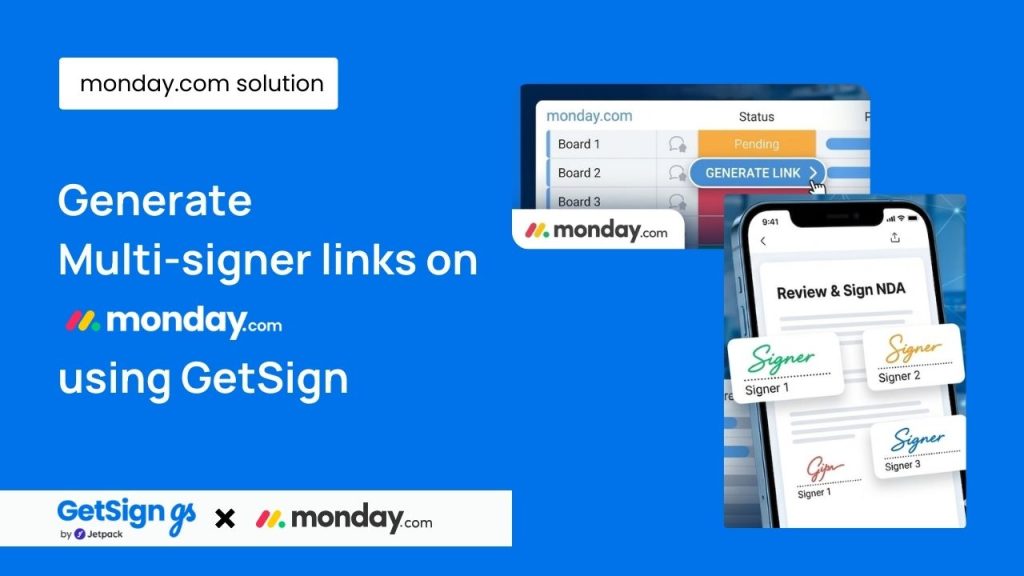
What if you can generate multi-signer links on monday.com? Imagine your team working on monday.com frequently handles contracts, proposals, or onboarding documents that require signatures from multiple parties. For example, a sales team closing a deal might need signatures from both the client’s legal department and their procurement manager. Or, HR might require new hire documents signed by the candidate and an internal manager.
Collect signatures and form data faster with signing links
Sending documents back and forth to each signer through email can be slow and lead to bottlenecks and delays. Your team needs a streamlined way to get these documents signed efficiently, especially when some signers also need to provide additional information through forms.
GetSign’s multisigner link generation:
The GetSign multisigner link generation feature in monday.com empowers your team to automate the creation of unique, shareable signing links for documents requiring multiple signatures. By configuring your GetSign template with specific signer roles and integrating it with your monday.com board, you can trigger a seamless workflow that generates a single link for all signers.
Each signer can then access the document, complete any assigned form fields, and apply their signature independently, drastically reducing turnaround times and improving security.
Step by step setup on how to generate multi-signer links on monday.com with GetSign:
Follow these steps to configure GetSign for multisigner link generation:
- Prepare your GetSign document template:
- Navigate to your GetSign settings within monday.com and open or create a document template.
- Configure Signer Roles: Assign distinct roles for each required signer (e.g., “Client Manager” and “Client Legal”).
- Map Signer Roles to Columns: Assign one role directly to a specific team member (e.g., your own for internal signers) and another role to an Email column on your monday.com board. This ensures the link works dynamically for external signers.
- Assign Form Fields (Optional): If certain signers need to fill out information before signing, assign specific form fields to their respective roles within the template.
- Save your template.
- Activate Link Generation in GetSign Settings:
- From your monday.com board, open the GetSign app settings.
- Scroll down to the “Share and Track” section.
- Toggle on the option.
- Select Trigger Column and Value:
- Choose a Status column on your monday.com board that will trigger the link generation (e.g., “Document Status”).
- Select a specific status value from that column that will initiate the process (A common choice is “Generate Link”).
- Select a Link column on your monday.com board where the generated signing link will be stored. If you don’t have one, create a new Link column and then select it.
- Configure Email Validation:
- Inside the GetSign Share & Track section, locate the “Email Validation” toggle.
- Turn Off for a simpler workflow where signers access the document directly via the link.
- Turn On to require signers (assigned to an email column) to enter a One-Time Password (OTP) sent to their email before they can access the document, adding an extra layer of security.
- Click Save to apply your settings.
- Trigger the Workflow:
- Create a new item on your monday.com board (or update an existing one).
- Ensure the email column (if used for a signer role) contains the correct email address.
- Change the selected Status column to the trigger value you configured (e.g., “Generate Link”). The automation will then run and populate the designated Link column with the unique signing link.

Offer Letters, Signed Same-Day
Send HR documents for signature from monday.com
Automate HR docs free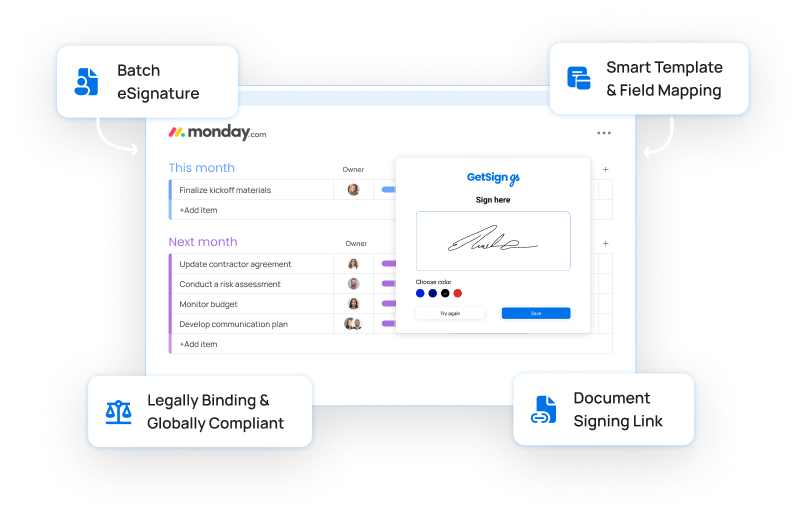
Tips and best practices of generating multiple signers link:
- Template Testing: Always test your multisigner template with all roles, including form fields, before deploying it in a live workflow.
- Email Column Accuracy: Ensure the email column associated with a signer role is consistently updated with the correct email addresses.
- Communication: Clearly communicate to your signers that they will receive a single link and select their role upon opening it. If OTP is enabled, inform them to check their inbox for the verification code.
- Security (OTP): For sensitive documents, always enable email validation (OTP) to add a crucial layer of security, verifying the signer’s identity before they access the document.
- Signed Document Storage: After all signers complete the process, the finalized signed document will automatically appear in the designated file column on your monday.com board.
What you can do with signing links for multiple signers?
With GetSign Multisigner Link Generation set up, your team can now effortlessly manage complex signing workflows. Instead of manual follow-ups and individual document sending, you’ll simply change a status on a monday.com item, and a secure, personalized signing link will be generated.
Signers will receive one link, choose their role, complete any required form fields, and apply their signature, all within a streamlined, guided process. This means faster document completion, improved security, and more time for your team to focus on core tasks, knowing that multi-party documents are handled with efficiency and precision.