

To keep your monday.com workspace organized and secure, it is essential to periodically clear out old and unused webhooks, especially those left behind by integrations like GetSign. You can now delete webhooks on monday.com created by GetSign. As your team’s workflows evolve on monday.com, you might find that some of your GetSign document signing processes are no longer needed. Perhaps a client contract template changed, an old approval step was removed, or a specific signing flow is now obsolete.
In such cases, you’ll want to clean up your workspace by removing any associated GetSign webhooks that are no longer active or applicable. This helps keep your automations relevant and your board tidy.
Problem:
You may have noticed that when trying to remove a GetSign webhook directly from the monday.com automations section, the delete option is not accessible. Due to certain technical limitations within monday.com’s webhook architecture for integrated apps like GetSign, you cannot simply delete these webhooks yourself through the standard interface. This can lead to lingering, unnecessary automations.
Solution Overview
To address this, Jetpack Apps provides a straightforward support process to help you remove any GetSign webhooks that are no longer needed. You’ll need to locate the unique Automation ID for the specific webhook within monday.com and then submit a request through our support portal. Our team will then promptly delete the webhook for you.
Follow these steps to successfully request the deletion of your GetSign webhook:
- Identify the Webhook Automation ID:
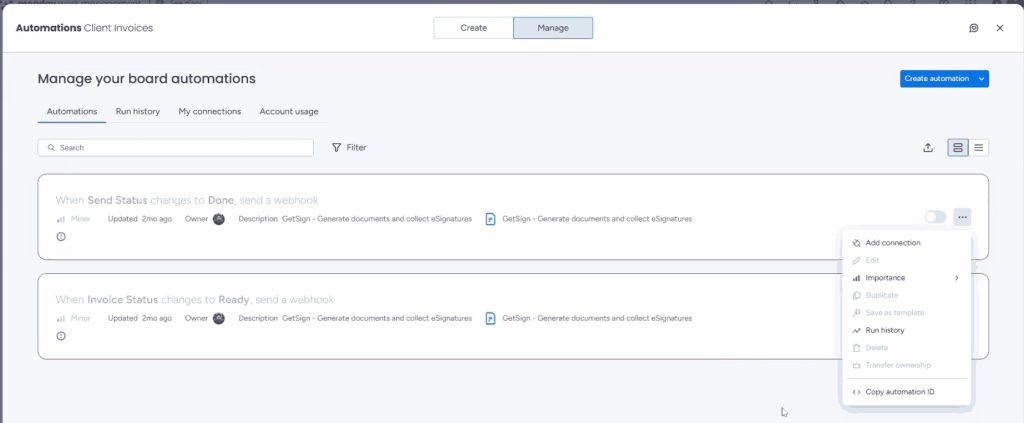
- Navigate to the “Automations” section of your monday.com board where the GetSign webhook is configured.
- Click on “Manage” in the top right corner of the Automations center.
- Find the specific GetSign webhook automation you wish to remove.
- Click on the three horizontal dots next to the automation’s name.
- From the dropdown menu, select “Copy automation ID.” This will copy a unique identifier to your clipboard.
- Access the Jetpack Apps Support Form:
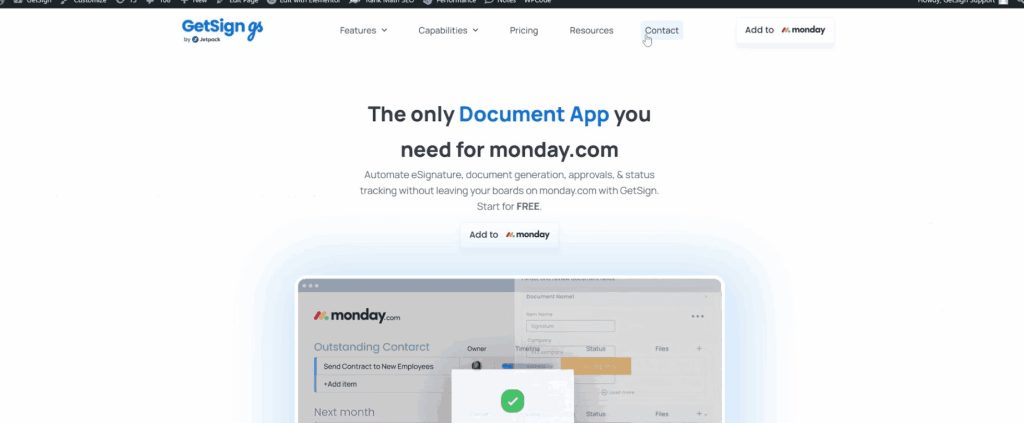
- Go to the GetSign website.
- Click on the “Contact” button, usually found in the main menu or footer. This will direct you to the Jetpack Apps support form.
- Submit Your Deletion Request:
- Your Name: Enter your full name.
- Your Email ID: Provide the email address associated with your monday.com account.
- Account URL: Enter your monday.com account URL (e.g., yourcompanyname.monday.com). This is crucial for us to locate your account.
- Type of Inquiry: Select “Technical Issue” from the dropdown menu.
- Product: Choose “GetSign” from the product list.
- Subject: Type “Delete Webhook” as the subject.
- Message (Optional): In the message body, paste the “Automation ID” you copied earlier. You can also add a brief note or any relevant context if needed, and re-confirm your monday.com Account URL here.
- Account Type: Select whether your monday.com account is “Paid” or “Free.”
- Click the “Submit” button to send your request.
Tips, Caveats, and Best Practices
- Why this process? The need to go through support for GetSign webhook deletion is a current limitation within monday.com’s platform, which prevents direct user deletion of webhooks created by integrated apps.
- Be specific: Always provide the correct Automation ID for the webhook you want to delete. If you’re unsure, you can provide additional context in the message, and our team might be able to help identify it.
- Account URL is critical: Ensure you provide your exact monday.com account URL (e.g., yourcompanyname.monday.com). This helps us quickly find your account and address your request.
- What to expect: After submitting the form, our support team will review your request and get back to you, confirming the deletion of the specified webhook.
What the User Can Now Do?
Once the GetSign webhook is deleted, you can confidently maintain a clean and optimized monday.com workspace. You’ll no longer have inactive or unnecessary automations running in the background, ensuring your boards and workflows are focused and efficient. This streamlines your processes and helps avoid any confusion or unintended triggers from old configurations.