7 Best DocuSign alternatives for monday.com users in 2026
DocuSign is the most recognized eSignature platform in the world. But recognition does not always mean it is…

Think about the last time your team prepared a contract, HR letter, or sales proposal. Chances are it involved:
For most businesses, this is the daily routine — and it eats up hours of productive time every week. Beyond wasted time, it creates risks: typos in contracts, missed signatures, lost files, and compliance headaches.
Now imagine if every one of those steps — from document creation to signature collection, document generation and secure storage — happened automatically inside monday.com. That’s where GetSign for monday.com changes the game. It enables you to automate document workflow from start to finish — without leaving your monday.com board.
“Document workflow automation isn’t just about speed — it’s about accuracy, compliance, and scaling your operations without extra admin work.”
In this guide, you’ll discover 5 powerful strategies to automate your document management on monday.com using GetSign, with real-world examples, video walkthroughs, and tips to save 4–6 hours every week.
Let’s face it: manual processes might get the job done, but at what cost?
Every time your team edits documents, waits for signatures, or files papers manually, you’re losing time, increasing risk, and limiting your ability to scale.
Yes, monday.com can be used as a document management system, but its native tools have clear boundaries. While monday.com excels at team collaboration and storing static files, running a end-to-end document workflow—like creating personalized contracts, collecting binding eSignatures, tracking status, and retaining audit trails—requires a more robust setup.
By combining monday.com boards with document management and eSignature on monday.com via GetSign, you transform your workspace into a fully operational Document Management System (DMS).
Here’s what monday.com handles natively:
Here’s what GetSign adds on top:
Together, monday.com + GetSign gives your team centralized monday.com document management without needing a separate tool. All document creation, approval, signing, and storage happens in one place — your monday.com board.
To understand where monday.com shines and where it needs an operational boost, it helps to look at its core document capabilities side-by-side:
| Feature / Capability | monday File Column | monday Workdocs | GetSign Operational DMS |
| Primary Use Case | Attaching static files (PDFs, images) | Internal brainstorming & drafting | End-to-end document execution |
| Document Generation | Manual upload only | Text templates only | Auto-populates from board data |
| eSignatures | None | None | Secure, legally binding eSignatures |
| Audit Trail & Compliance | None | Basic edit history | Complete audit log (IP, timestamps, OTP) |
| Board Status Automation | Manual status update | Manual status update | Auto-updates item status on signature |
Automating monday.com document management doesn’t just make work easier — it makes growth sustainable.
With GetSign on monday.com, you can:
This reduces errors, saves hours every week, and speeds up approvals.
GetSign turns monday.com into a complete document management system. Beyond sending documents for signature, it gives you document engagement tracking features, so you can see when a document was opened, how long a signer spent reviewing it, and when it was completed.
Teams looking to integrate e-signatures into monday.com use GetSign to set up automated document signing sequences: a status change on a board triggers document generation, sends it to the right signer, and stores the completed file — all without manual intervention. It’s monday.com document management with e-signature built in.
monday.com workflow vs automation — what’s the difference?
Many users use the terms interchangeably, but they mean different things inside monday.com:
GetSign bridges both. It fits into your existing monday.com workflow automation setup as a native action – no third-party Zapier connections needed. You can trigger document generation, send for signature, and update statuses automatically using simple, no-code automation recipes directly inside your board.
Now, lets dive deep into 5 powerful ways to automate document workflow on monday.com using GetSign
Automation begins by bringing your documents into GetSign. Instead of reinventing formats, simply upload your existing DOCX or PDF files (such as agreements, proposals, or approval forms) directly into the monday.com board. Save the template so it can be reused across the board or for a single item in the board.
Centralizing your working file removes version sprawl and keeps signature placement consistent. You now have two options:
Edit templates globally or per item
Want to make changes to your document template?


Use case:
An HR manager uploads an offer letter template once. For each new hire, this template is then ready for completion and dispatch, thereby saving significant time previously spent on manual editing. Should the HR manager need to modify a specific document, the option to edit it at the item level is available within the monday board.
No more setting up complex automation recipes. With GetSign Generate, you can generate documents automatically based on item status changes — a simple, no-code setup.
This means the moment your board status updates, your document on monday.com is ready — no delays, no manual edits.
• Documents appear the moment your workflow says they should
• No separate automation recipes to maintain
• Clear storage location—every time, same file column, same name pattern
Use case:
In Sales, when a deal moves to “Closed,” a proposal document is auto-generated and saved — reducing back-and-forth and closing deals faster.
GetSign operates inside each monday.com item as a dedicated document management and signature workspace.
Forget separate e-signature tools — handle everything inside monday.com. GetSign lets you configure your entire esignature workflow within each item. Setup includes:
Once sent, signers receive an email link, and completed documents are automatically saved to your board. You can setup automated document signing sequences workflow on monday.com with GetSign.

Use case
Gain full visibility into every document — without switching tabs. With GetSign, you get real-time insights on which documents are signed, pending, or delayed — all within your monday.com item view.
Once signed, documents are automatically stored securely, with audit trails for compliance.

One of the most common questions teams have is: what happens the moment a document gets signed? With GetSign, you don’t have to do anything manually — you can configure the exact next step.
Here’s how post-signature automation works:
Examples of what you can trigger automatically after signing:
This means your team never has to manually check whether a document is signed. The workflow moves forward the moment the signature is complete — saving hours of follow-up time every week.
Use case — Sales: When a client signs an NDA or proposal, the deal automatically moves to “Won,” a new project item is created in the delivery board, and the sales rep gets a Slack notification. Zero manual handoff.
Use case — HR: When an offer letter is signed, an onboarding subitem is auto-created for the new hire’s first-day checklist, and the HR manager is notified instantly.
Security and legal validity are non-negotiable for document management. GetSign equips your monday.com workflow with enterprise-grade compliance:
For sales teams using monday.com as a CRM, GetSign turns your board into a complete contract automation system. Here’s a typical automated sales document workflow:
Step 1 — Deal moves to “Proposal Ready” A status change triggers GetSign to auto-generate a branded proposal using live board data — contact name, deal value, product details — no manual copy-pasting.
Step 2 — Proposal sent for e-signature GetSign automatically sends the proposal to the prospect’s email with a secure signing link. The status updates to “Sent for Signature.”
Step 3 — Prospect signs The prospect receives a clean, professional signing experience — no account required. They sign in seconds from any device.
Step 4 — Board updates automatically The moment the document is signed, the item status changes to “Signed,” the signed PDF is stored in the file column, and the deal moves to the next pipeline stage.
Step 5 — Team is notified The account manager gets an automatic notification. A project creation subitem is triggered in the delivery board.
This entire flow — from proposal to signed contract — happens without a single manual step. Sales teams close deals faster, with less admin, and full documentation stored safely in monday.com.
Chasing people for signatures wastes time and creates awkward back-and-forth. GetSign handles this automatically.
Automatic signature reminders work like this:
You can also set monday.com automation recipes to:
This is especially valuable for contract management on monday.com — you always know exactly where each contract stands, who hasn’t signed, and when the last reminder was sent. No more digging through email threads.
Most teams juggle Word files, PDF editors, Dropbox, and third-party e-signature apps — adding complexity and cost. GetSign replaces all of that with a native experience built for monday.com users.
One platform. One board. One seamless document workflow.
One of the biggest pain points for teams managing documents across email, Dropbox, and separate e-signature tools is simple: you never know where anything stands. Did they open it? Did they sign it? Which version is the final one?
GetSign solves this with built-in document tracking directly inside your monday.com board.
What you can see at a glance:
GetSign Track gives you real-time engagement data — not just whether a document was signed, but whether it was even opened. This is critical for follow-up: if a client hasn’t opened a contract after 48 hours, you know to reach out before they forget.
All status updates sync directly to your monday.com board columns, so your entire team has the same visibility without needing to ask anyone for updates.
Manual document processes slow teams down and cost businesses valuable hours. With GetSign, you can automate document workflow on monday.com, reduce errors, stay compliant, and save significant hours every week.
Start your free trial today and see the difference of monday.com document management with GetSign
How do I automate document signing workflows on monday.com?
Install GetSign from the monday.com marketplace, upload your document template, set a status-based trigger (e.g., “Ready to Sign”), and configure your signers. GetSign automatically sends the document, collects the signature, and saves it back to the board — no manual steps.
How do I trigger an automated workflow immediately after a document is signed?
GetSign updates a signature status column the moment a document is signed. Use that column as a trigger in any monday.com automation recipe — for example: “When Signature Status changes to Signed → change Item Status to Closed Won and notify the project manager.”
Can monday.com be used for document management?
Yes. With GetSign, monday.com becomes a full document management system — covering generation, e-signature, tracking, and secure storage. Many teams replace separate tools like DocuSign and Dropbox entirely by consolidating everything on their monday.com board.
How do companies manage document signing workflows?
Most teams use one of three approaches: manual email-based signing, standalone tools like DocuSign disconnected from their project management system, or an integrated solution like monday.com with GetSign — where document creation, signing, and storage all happen in one workflow.
How do I automate contract signing in sales on monday.com?
Trigger GetSign when a deal reaches a pipeline stage like “Proposal Ready.” GetSign generates the contract using live board data, sends it to the prospect, and updates the deal status once signed — fully automated, from trigger to stored contract.
How do I automate contract reminders on monday.com?
GetSign includes built-in automatic reminder emails for unsigned documents. Set the reminder interval when configuring the signature request. You can also create monday.com automation recipes to escalate or notify your team if a document stays pending beyond a set number of days.
What is the difference between a monday.com workflow and an automation?
A workflow is your end-to-end process — from document creation to signing to storage. An automation (or recipe) is a specific trigger-action rule that executes one step of that workflow automatically. GetSign plugs into monday.com automations to handle the document steps without any coding.
Does GetSign support subitems and approval columns in monday.com?
Yes. GetSign works at both item and subitem level. You can use the monday.com Approval column as a trigger — for example, route a document for internal review first, then automatically send it to the client for signature once approved.
How do I get full document workflow visibility in monday.com?
GetSign Track shows real-time status — Sent, Viewed, Signed, Declined — inside each monday.com item, synced to board columns. Your entire team has live visibility without switching tools or asking for updates.
Is GetSign compliant with global e-signature laws?
Yes. GetSign complies with ESIGN, UETA, eIDAS AES, HIPAA, and GDPR. Every signed document includes a tamper-evident audit trail with timestamps, IP addresses, and signer verification — legally binding across most industries and jurisdictions.
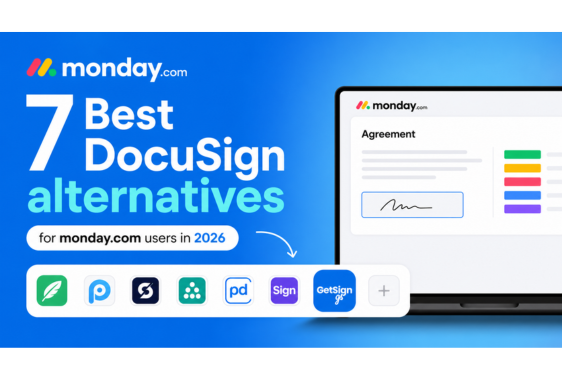
DocuSign is the most recognized eSignature platform in the world. But recognition does not always mean it is…
GetSign vs. DocuGen is a head-to-head match between two of the most recognized document apps on monday.com. Which…
Generate, send, sign and track documents without leaving your workflow.